Cream paper makes your spine wider than white paper at the same page count, so picking the wrong paper type is enough to throw a print cover off.
The fix is the Paperback cover card on your book page. Open the book from your shelf and scroll down to it (or click Paperback cover  under the download button, it jumps straight there).
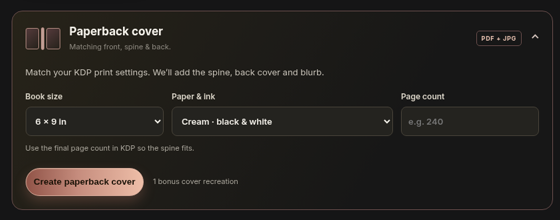
Fill in the same settings you’ll choose in KDP:
- Book size: 6 × 9 in, 5 × 8 in or 5.5 × 8.5 in
- Paper & ink: cream or white, black & white or color
- Page count: the final number KDP shows after you upload the interior
Then hit Create paperback cover. It adds the spine, back cover and blurb to your existing front, and you get it as PDF + JPG.
I always upload the interior to KDP first and copy the page count from there. Has anyone else had a spine come out a few millimetres off?